CClient (Version 2.0) If you have Version 1.41, I would update to Version 2.0,
then read:
‘Known Bugs & Recommended Settings’ (If you do not know what version you
have
(or are just curious), click on Help >> About)
You can download CClient 2.0 from here: http://home.centurytel.net/khb/cclient/index.html

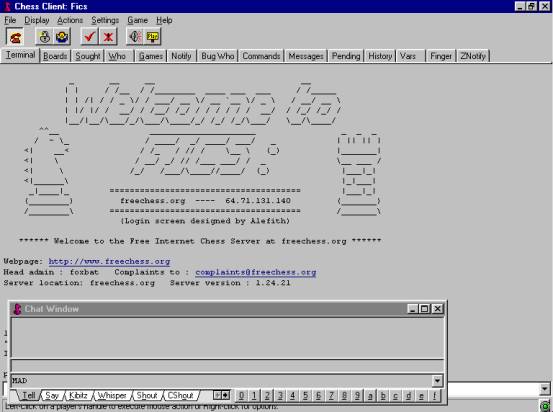 Screen shot with chat window
I’d say this
interface is good for beginners.
Chess Client (CClient) All in one window lay-out.
With its
tab windows near the top of the screen, Terminal, Board, Sought, Who, Games,
Notify, Bug Who, Commands, Messages, Pending, History, Vars. (Variables), Finger and
ZNotify.
Let’s take
a look at Tabs.

 Tabs
Tabs
Terminal, Is
the main window; much the same as the ICS window in the Winboard or Thief
interfaces.
As with
most other interfaces, CClient also has a right click menu.
Board, as
you would think, is the chessboard. The chessboard will auto-pop up at the start
of a game. Also at the start of a game you will hear a sound file ‘New Game’

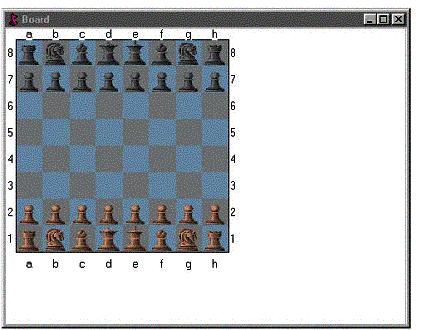 (Worth noting that the board can
be put in a separate window By clicking
on Settings >> Board in Separate Windows.)
(Worth noting that the board can
be put in a separate window By clicking
on Settings >> Board in Separate Windows.)
The board in a separate window (With my board settings)
Sought, Shows
the seek ads in Graph or Text mode. By clicking on Options within this window you
can change between Text and/or Graph mode, you can also change the graph range.
Graph mode you
will see Red or Blue dots, squares and triangles. Red for Rated games, Blue for
unrated games. The graph will display with: ratings along the side, and time control
along the bottom. Shown here as Lightning, Blitz and Standard.

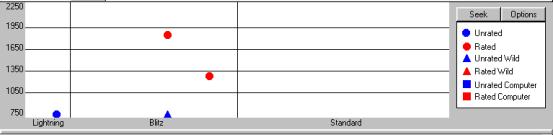 Seek Graph
Text mode
is much the same as typing: sought or setting seeks on ‘set seek 1’
Who, Lists some
of the players online. For the full list use the ‘Who’ command.
Commands, Shows
a list of FICS Commands. The same as in ‘Help Commands’
Messages, Messages
that have been sent to. Same as if you used the ‘Message’ command.
Pending,
Match offers. The same as the ‘Pending’ command
History, Is
a list of your last ten games history. The same as the ‘History’ command.
Vars. (Variables), Shows your FICS
variable settings. Same as if you used the ‘Vars’ command.
Finger, Will
show your ratings and notes. The same as the ‘Finger’ command.
Znotify, Your
present company on FICS
(People that you have added or they’ve added you to their Notify List).
Chat Window
The Chat
window has a Love it Hate it thing with users.
The Chat Window
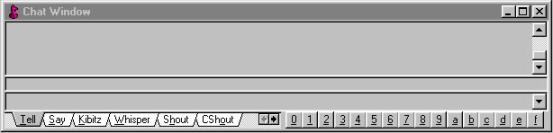
As you can see
has Tabs. Tell, Say, Kibitz, Whisper, Shout, CShout, I (It Shout shown as --->),
Ptell and Message. For more information on each of these commands, read the
online help file. Type: Help <file name>
i.e. Help Tell
Known Bugs
& Recommended Settings:
In Command
The ‘in’
command has been known to act up in CClient. With 1.41 you would get countless
errors and will be forced to shut down CClient.
(The ‘in’ command lists who is
in all of the channels on FICS)
It’s best
not to use: in <Channel No.> i.e. in 50
The error
will show then next time you try to talk in a channel or to a player. (Why it
doesn’t use the same system as the others I don’t know)
It doesn’t
happen with every channel, It occurs mainly in channels with a lot of users.
Best to
close down Cclient and reconnect.
Game Over
Message
As you
might have guessed Game Over message is shown at the end of game. You click on
OK to remove this message. We recommended turning this off. You can do this by
Clicking on Settings >> General >> Terminal. Then tick: Do not
display game over message. Then click on OK.
Manual
Promotion
Also
recommend that set promotion to manual.
You can do
this by Clicking on Settings >> Boards. Then tick Manual Promotion, then
OK
My board color settings
Board:
White Squares: Red
149 Black Squares: Red 158
Green 177 Green 161
Blue 197 Blue 161
White Pieces: Red 223 Black
Pieces: Red 158
Green 182 Green 158
Blue 155 Blue 158
Right Click
Menu

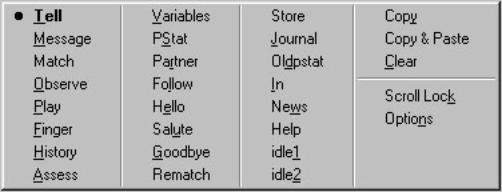 As you may have guessed, it's very
easy to access the menu, just click on your right mouse button anywhere below
the Tab bar.
As you may have guessed, it's very
easy to access the menu, just click on your right mouse button anywhere below
the Tab bar.
Right Click
Menu.
By right
clicking on a handle you can then pick an option from the menu. By left
clicking on Tell, Match, Observe and so on.
Let’s say you
want to Finger a player. Right click on their handle then clicking on Finger in
the menu. The information will show up in Terminal window.

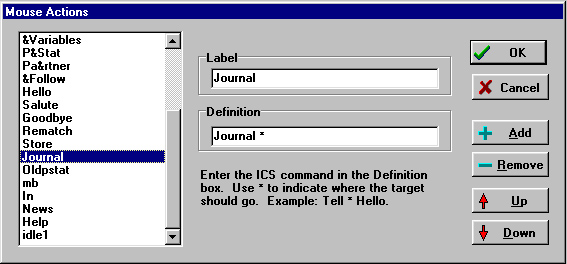 How to edit the right click
menu. This is in fact very easy to do, Click on Settings >> Mouse Actions
How to edit the right click
menu. This is in fact very easy to do, Click on Settings >> Mouse Actions
You will
see this window.
Click on + Add
In ‘Label’ is
the name that will show up in the menu i.e. Journal
Definition
is where you put the command in this case ‘Journal’
The ‘*’ is
where the handle will be when you use the option.
As you move
this new option anywhere you want within the menu by using Up and Down buttons
Once you
have finished click on OK.
If you want
a deleted a menu option. Select the one you want to delete then click on Remove.
CClient’s quick
guide page: http://www.geocities.com/TimesSquare/Alley/7007/CClientInstall.html
This page
looks at how to connect, seek for a game & board settings.
